 Support
Client Area
This article will help you to understand how to use the Client Area. Our Client Area can be used in certain ways. Here is a list of work can be done using the Client Login Area.
Registering with us
Firstly you need to register with us for having a client account. Simply visit our homepage and click register in the top right bar. Now, fill the form with a valid email address and other details you’ve asked for. Simply wait for a confirmation email. Now login here using your email and password.
Process of order
All order goes through a strict screening process because of a large number of fraudulent orders. If the order passes through the fraud check it will be ready in 15 minutes but still, for safety purposes, it takes 24 hours for your account to be activated. You will find your welcome email within 24 hours if not so then check your spam folder. If you have still not got the message go and submit your support ticket on the SuperGlobalHost Client Area.
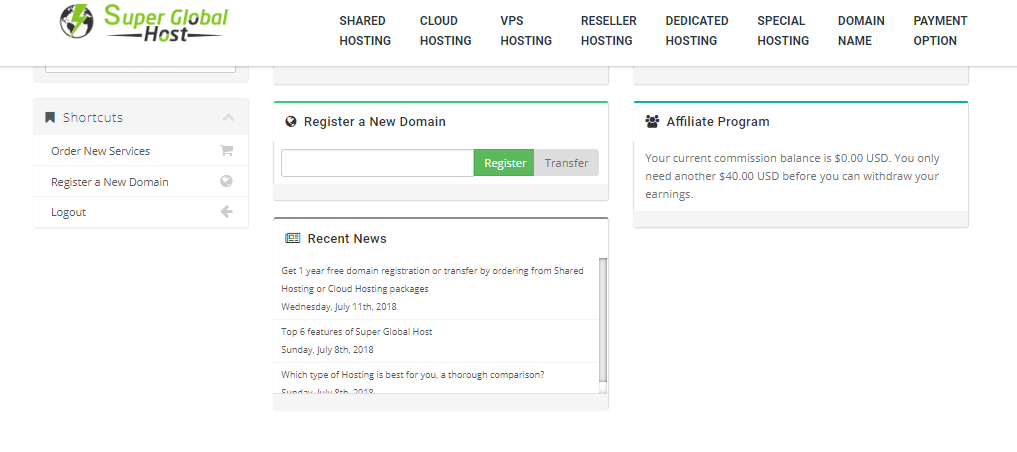
Then you can choose how you want to pay for example you can select you’re billing for a monthly deal for example 1 month, 2 months or etc.
Log in to Client Area
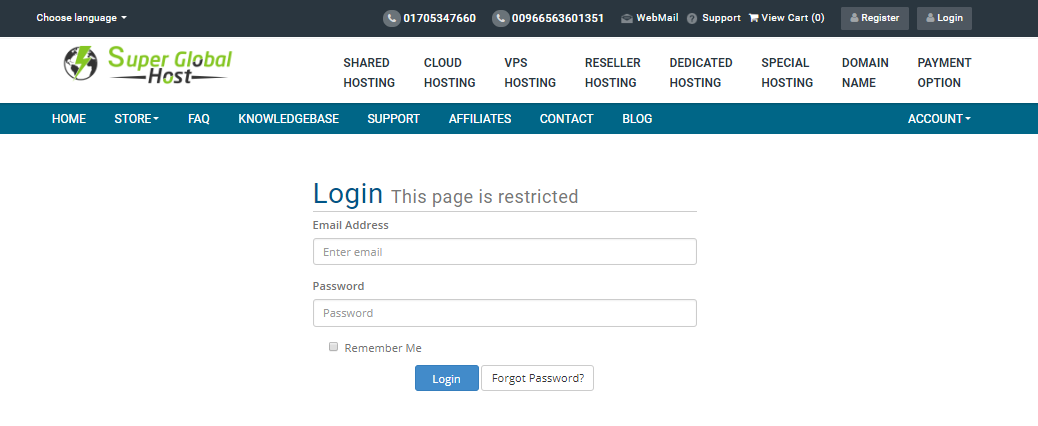
Use your browser to go to SuperGlobalHost Login page, then under manage your account click Secure Client Login. Then enter your Email Address and password which is associated with your SuperGlobalHost account. Then click Login to enter the Client Area.
How to edit your account’s details in Client Area
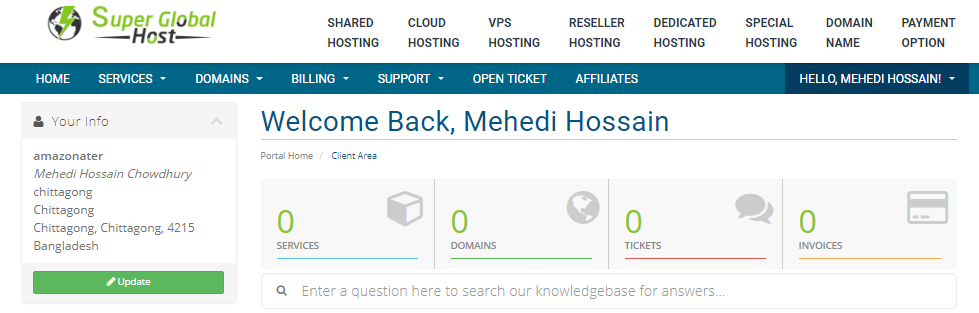
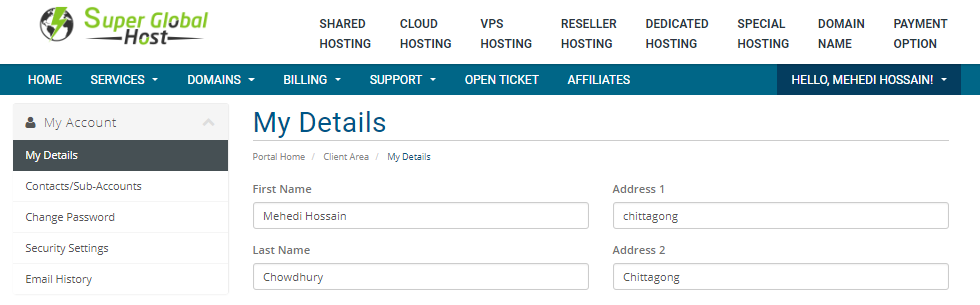
Login to the Client Area then search for the menu bar and click on account. Then go to edit account details. Then fill in the blanks with your contact information and in the end click on Save Changes.
How to transfer account ownership
If someone else is taking over the account it is very easy to do so, log in to SuperGlobalHost Client Area and provides contact information of the new owner including name, phone number, and email address. After you are done with your changes the new owner will be able to Log in to the Client Area.
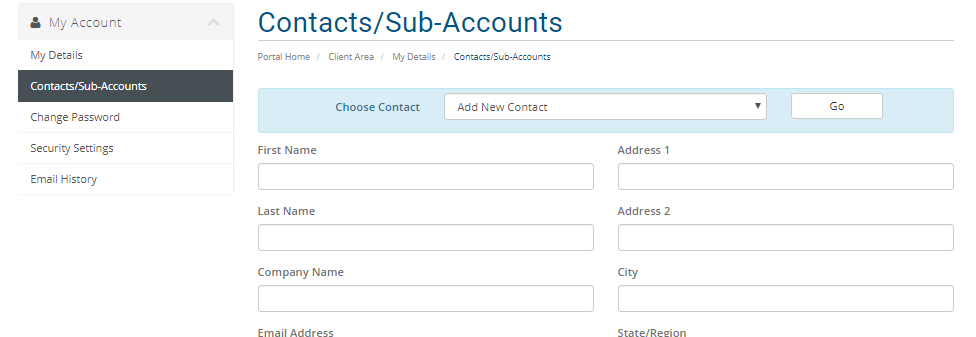
Look into Support history
To view the email history please follow these steps:
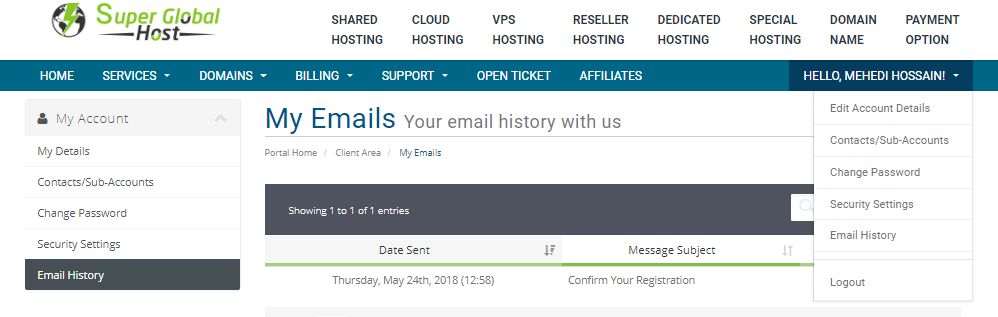
• Log in to the Client Area.
• Click account on the menu bar.
• Click Email History.
• There you will find out all your emails you can sort it out to any way you want.
• How to cancel a product or service
• In any time you can cancel your product or service but before doing so please review our billing policy.
To cancel a product or service please follow these steps:
• Log in to the Client Area.
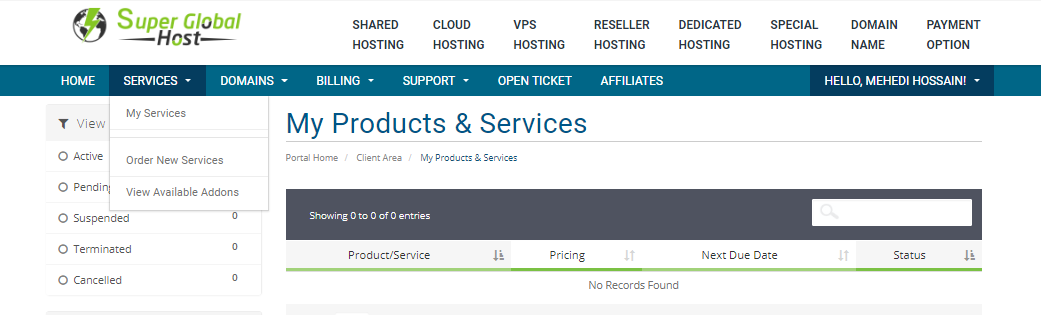
• On the menu bar click My Services.
• Under My Products and Services find out the product or service you want to cancel and then click on Manage.
• Then under Actions, click on Request Cancellation.
• A box will appear for you to write the reason for cancellation.
• Click Request Cancellation.
How to manage developer access on the Client Area
This article will help you to understand how you can manage developer access. You can keep a developer who has direct access to your account. Developers have all the functions that an owner has of the account.
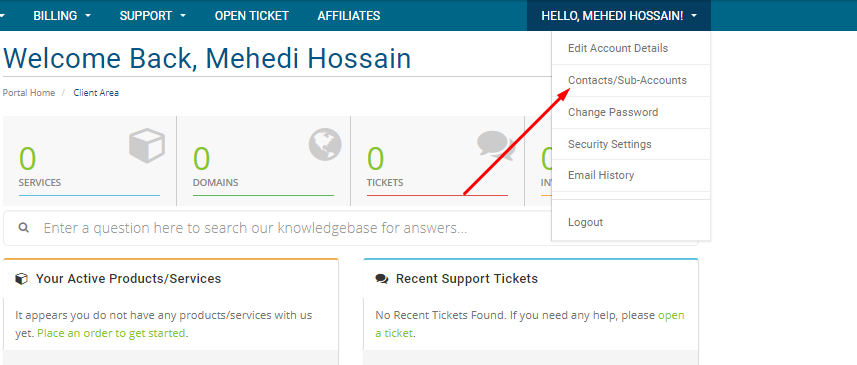
Adding developer’s access to your account:
• Log in to the Client Area.
• Click Account from the menu bar and then click Contacts/Sub-Accounts.
• Simply add a new account for the developer.
• In the Sub-account permission, tick the boxes to add access for the developer for which you want to give access to the developer.
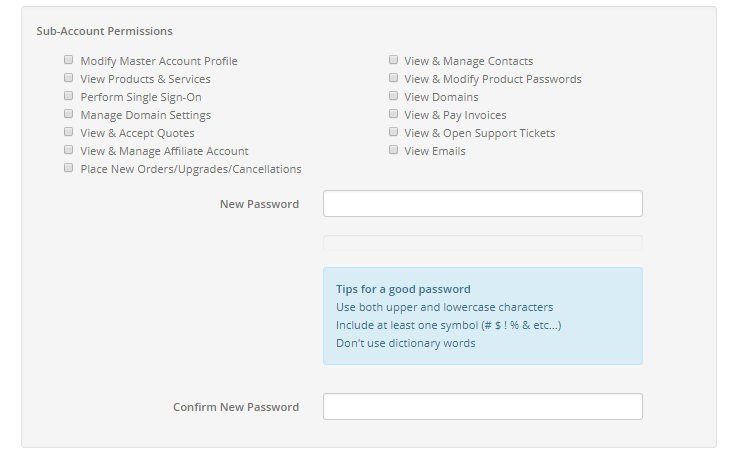
• Click Save Changes, the Developer will now have full access to your account.
 KSA C.R No. : 1009194418